Tutorial: how to add, edit and deploy pages?
Step #1 Creating pages
- Log in to your WordPress dashboard (admin).
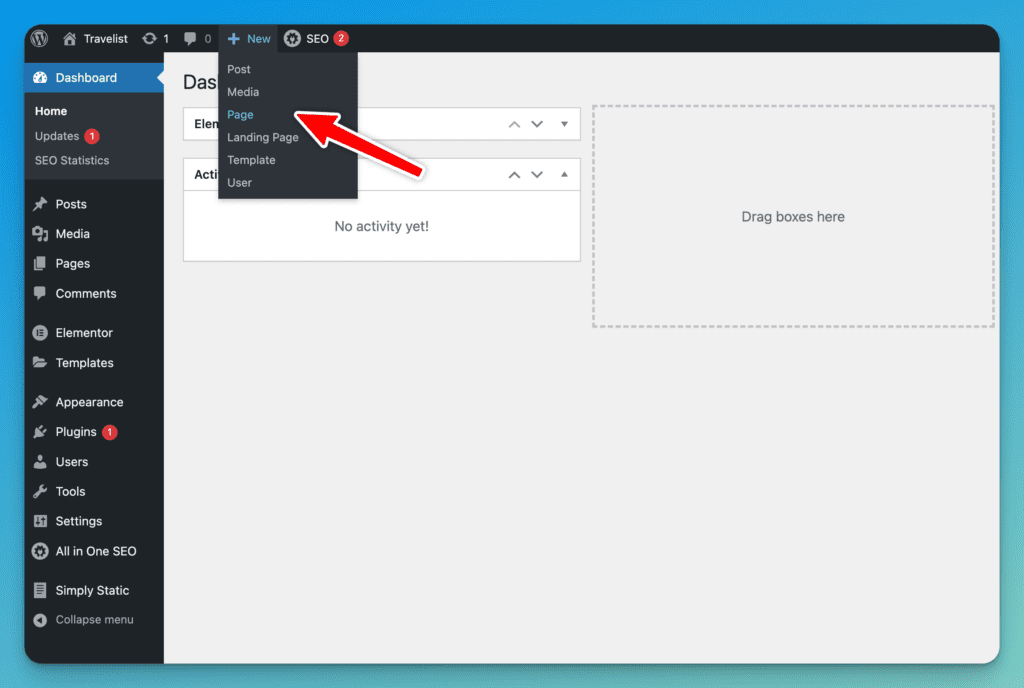
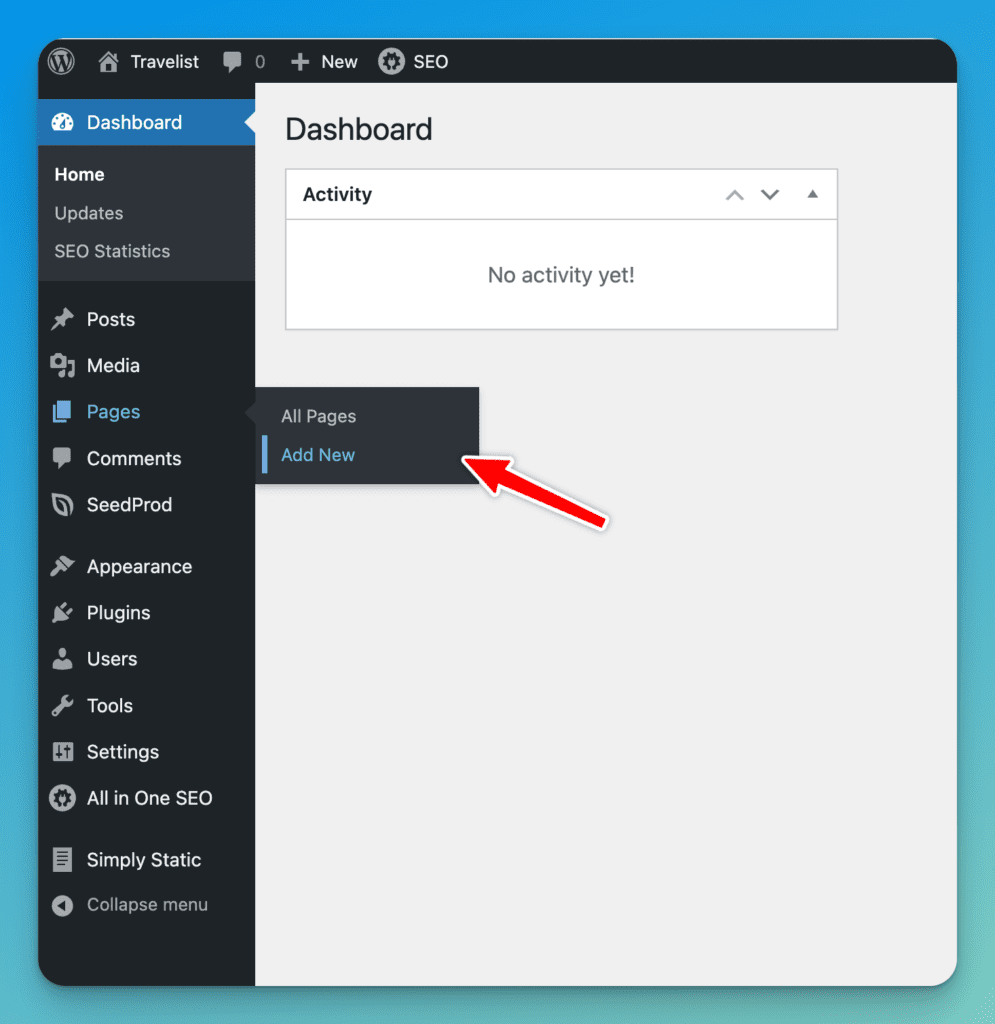
- Click on
Pagesin the left-hand menu and then click onAdd Newat the top of the page.
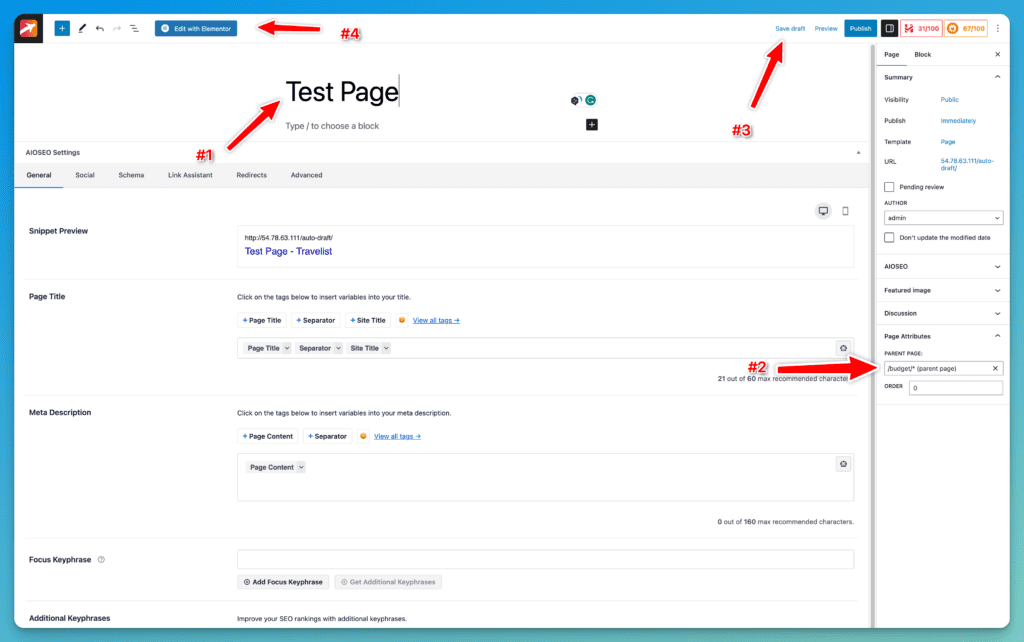
- Enter a title for your new page in the box provided.
- In the right-hand menu, locate the "Page Attributes" box.
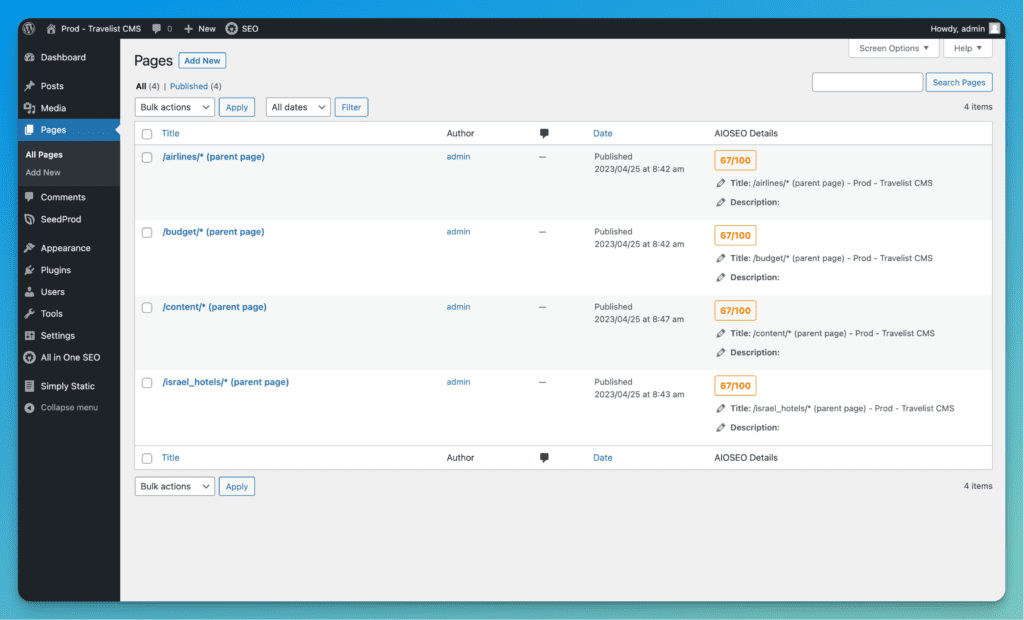
- Under the "PARENT PAGE" drop-down menu, select the parent page you want your new page to be nested under. It must be only one of these pages:
/airlines/* (parent page)/budget/* (parent page)/content/* (parent page)/israel_hotels/* (parent page)
- Under the "PARENT PAGE" drop-down menu, select the parent page you want your new page to be nested under. It must be only one of these pages:
- In the right top menu click on
Save draftbutton and then in the top left menu click onEdit with Elementorand start working with Visual contructor.
How to add search widget?
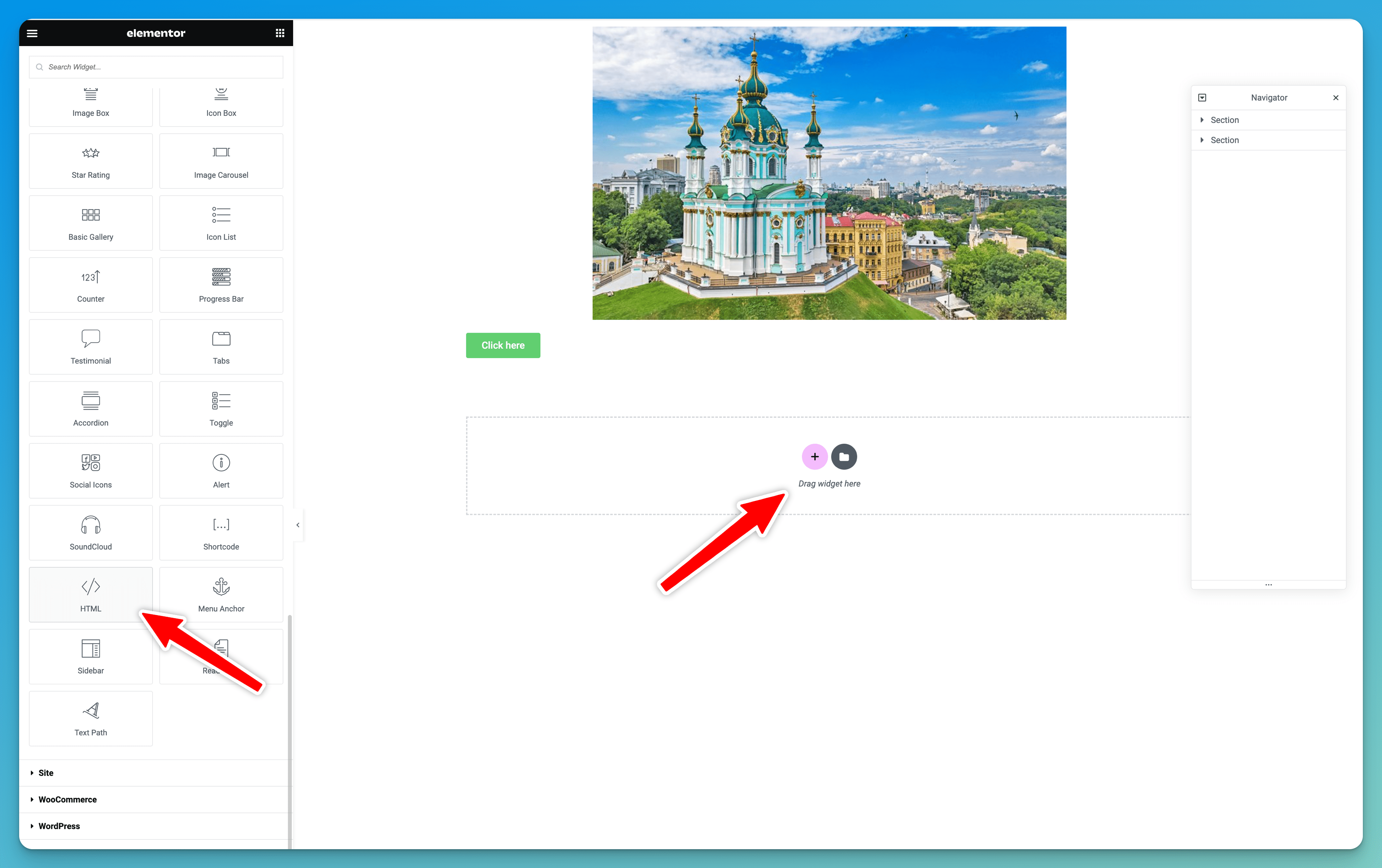
- Open the page where you want to add the widget and locate the "HTML" button.
- Click on the "HTML" button to open the editor.
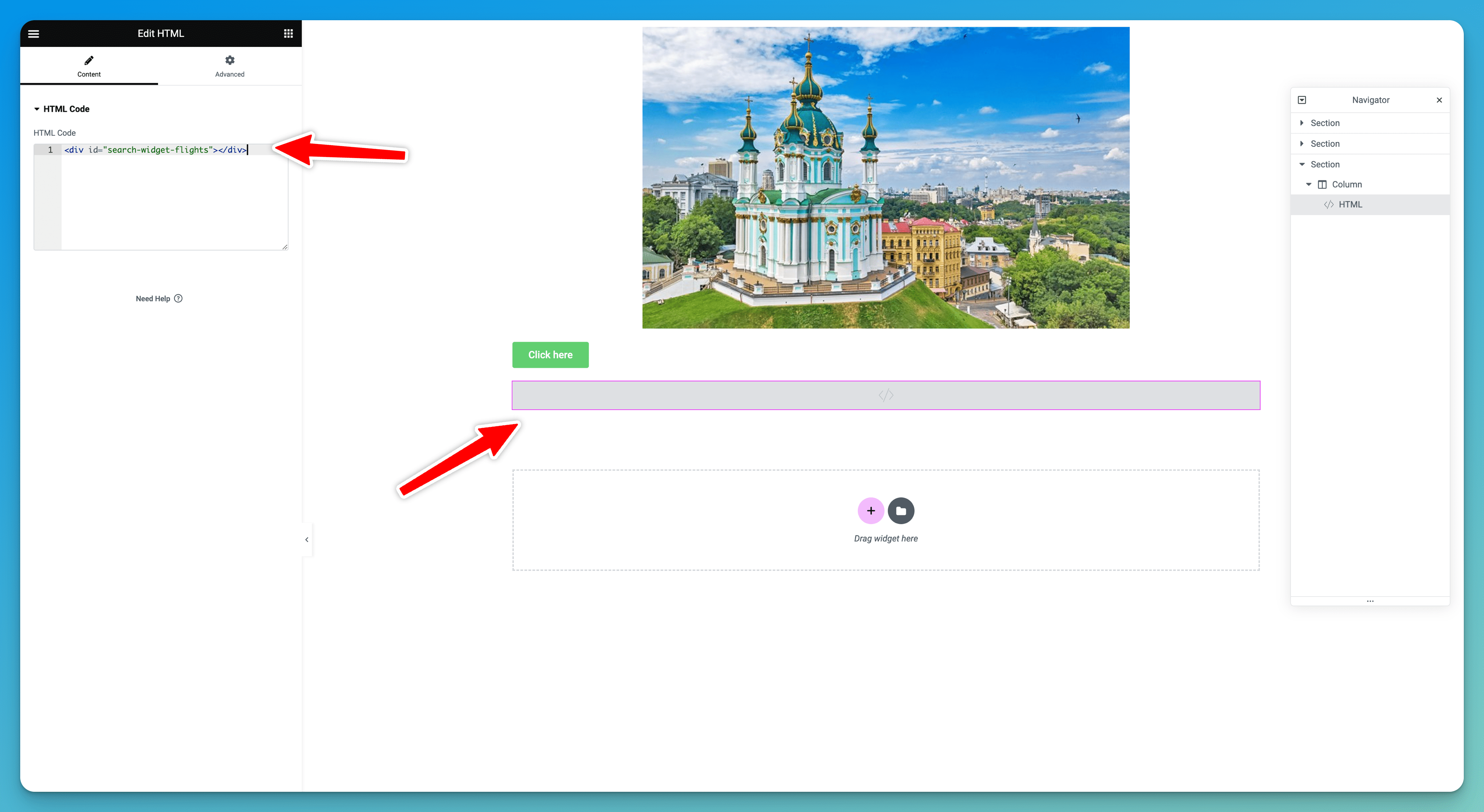
- In the editor, add an empty
divelement with a specificidattribute that corresponds to the type of widget you want to add. There are three types of widgets available: "Flights", "Packages", and "Domestic".
To add a "Search Flights" widget, add the following code:<div id="search-widget-flights"></div>
To add a "Search Packages" widget, add the following code:<div id="search-widget-packages"></div>
To add a "Search Domestic" widget, add the following code:<div id="search-widget-domestic"></div>
We recommend to usedivfor full width of page (section) for correct representative.
Step #2 Deploy pages
Steps how to deploy static generated Wordpress pages.
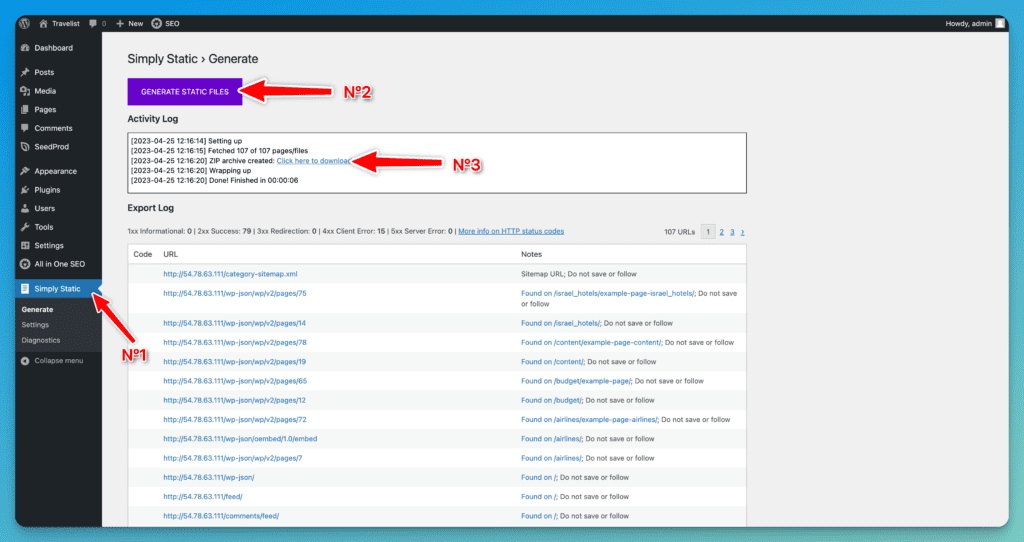
1. Go to Wordpress Admin. Click to Simple Static menu, generate pages and download in zip file.
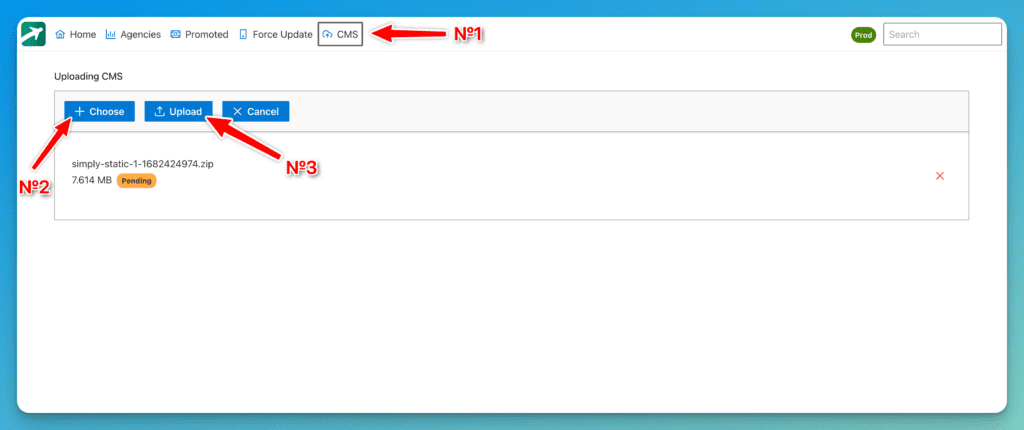
2. Go to back office (admin dashboard), click on CMS menu item. Upload zip file and click Upload.
– Stage environment: https://d2adh72h7zdd4d.cloudfront.net/
– Prod environment: https://d3gmvrudoh195v.cloudfront.net/
After successful message, you have to wait 3-7 minutes for the end of deployment. While deploying is in progress, all SEO pages are not available.
About parent pages
Right now, we have only 4 parent pages, which you can use for parent pages. If you wanna to add new parent page. Please assign it for developer team.
It's important to note that each page in WordPress must have a parent page assigned to it, which is considered the top-level page. This parent-child relationship creates a hierarchy of pages, making it easier to organize and structure website.
About URL (permalink) and support (overwrite) old SEO pages
This manual provides step-by-step instructions on how to create and manage pages in WordPress. We will cover the process of creating a new page and overwriting an existing page, using the example of the page `/budget/Flights_to_Barcelona/?fldAction=31&fldCity=1311`. After deployment, your page will be accessible through the link /budget/Flights_to_Barcelona/?fldAction=31&fldCity=1311. Follow the instructions below to get started.
1. To be ensure that a new Wordpress matches the desired permalink, which is `/budget/Flights_to_Barcelona`. For configure and changes URL, try to do it here:
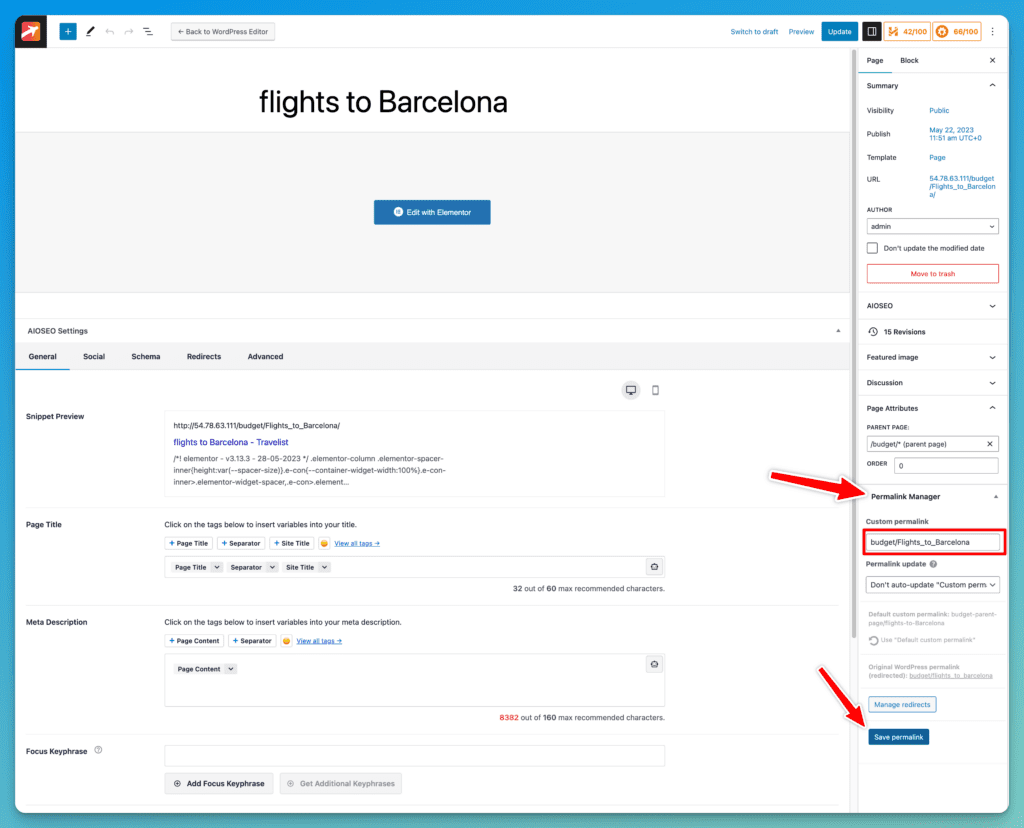
2. After deployment your page, it will be accessible through the link `/budget/Flights_to_Barcelona/?fldAction=31&fldCity=1311`.
FYI: developer also has internal mapping mechanism, so you can test on stage environment if everything working correctly.
How to edit an existing WordPress page using the Elementor visual page builder?
Click on Pages item in sidebar and select page which you would like to change.
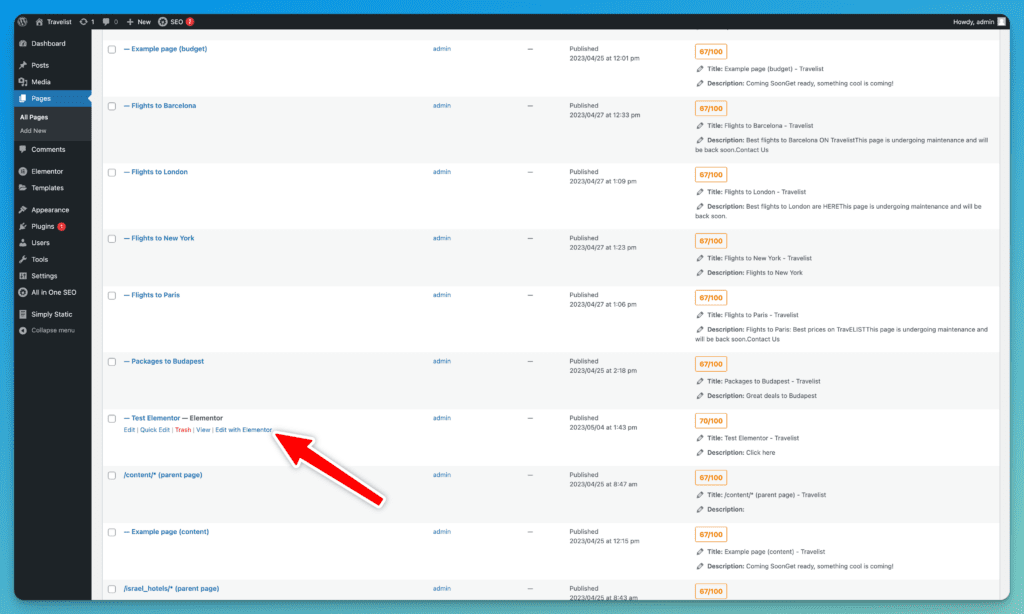
Or navigate to the all wordpress pages and select Edit with Elementor.